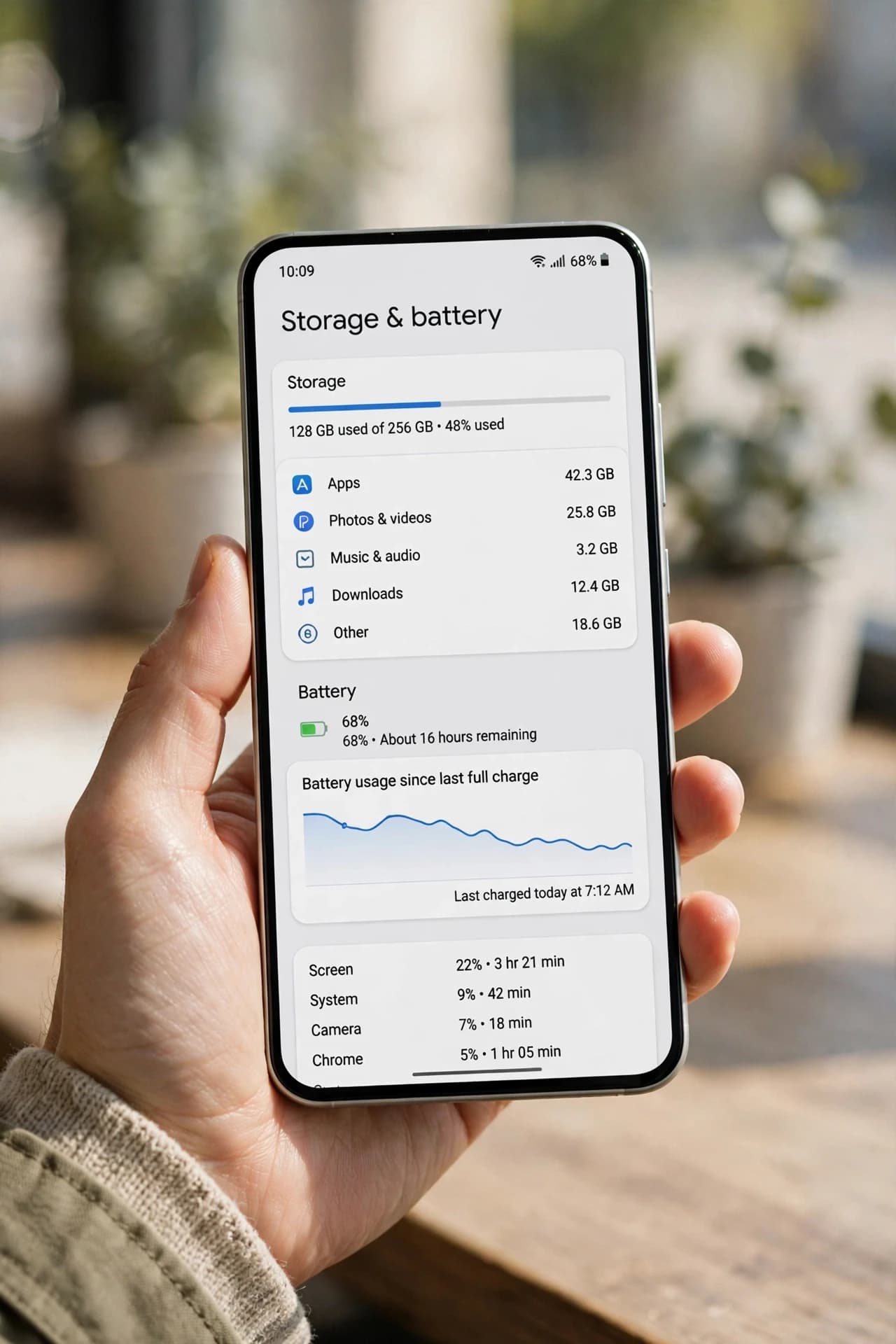
Your phone was fast when you bought it. Now WhatsApp takes 5 seconds to open, the keyboard lags while you type, and the camera freezes at the exact moment you want a photo. Before you blame the phone - and before you spend money on a new one - check the three things that actually slow most Android phones down: full storage, hungry background apps, and one misbehaving app. In this guide you will find the exact culprit on your own phone in about 10 minutes, and fix it without losing a single photo. If you want to speed up a slow Android phone, start with the 2-minute test below.
The 2-minute test
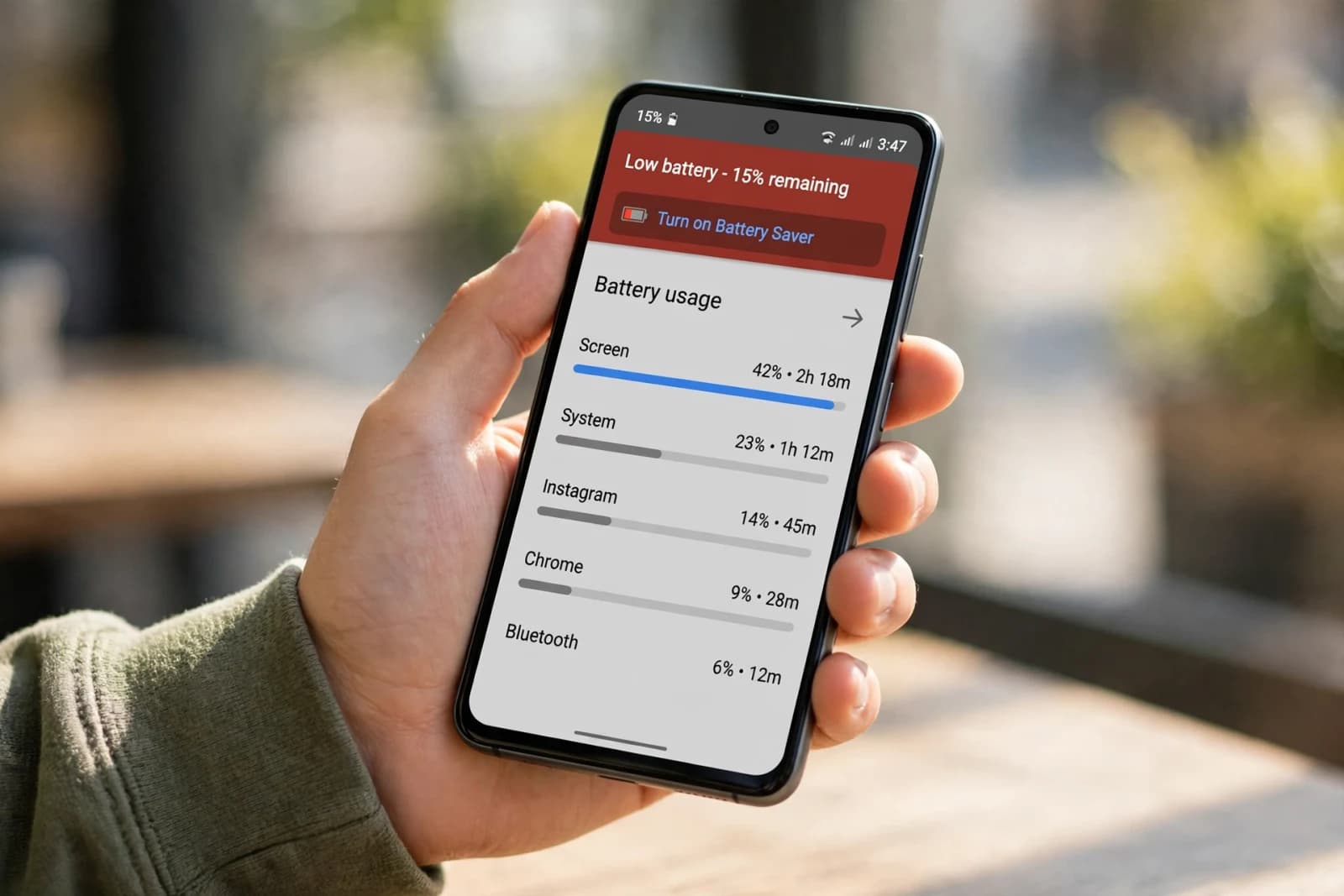
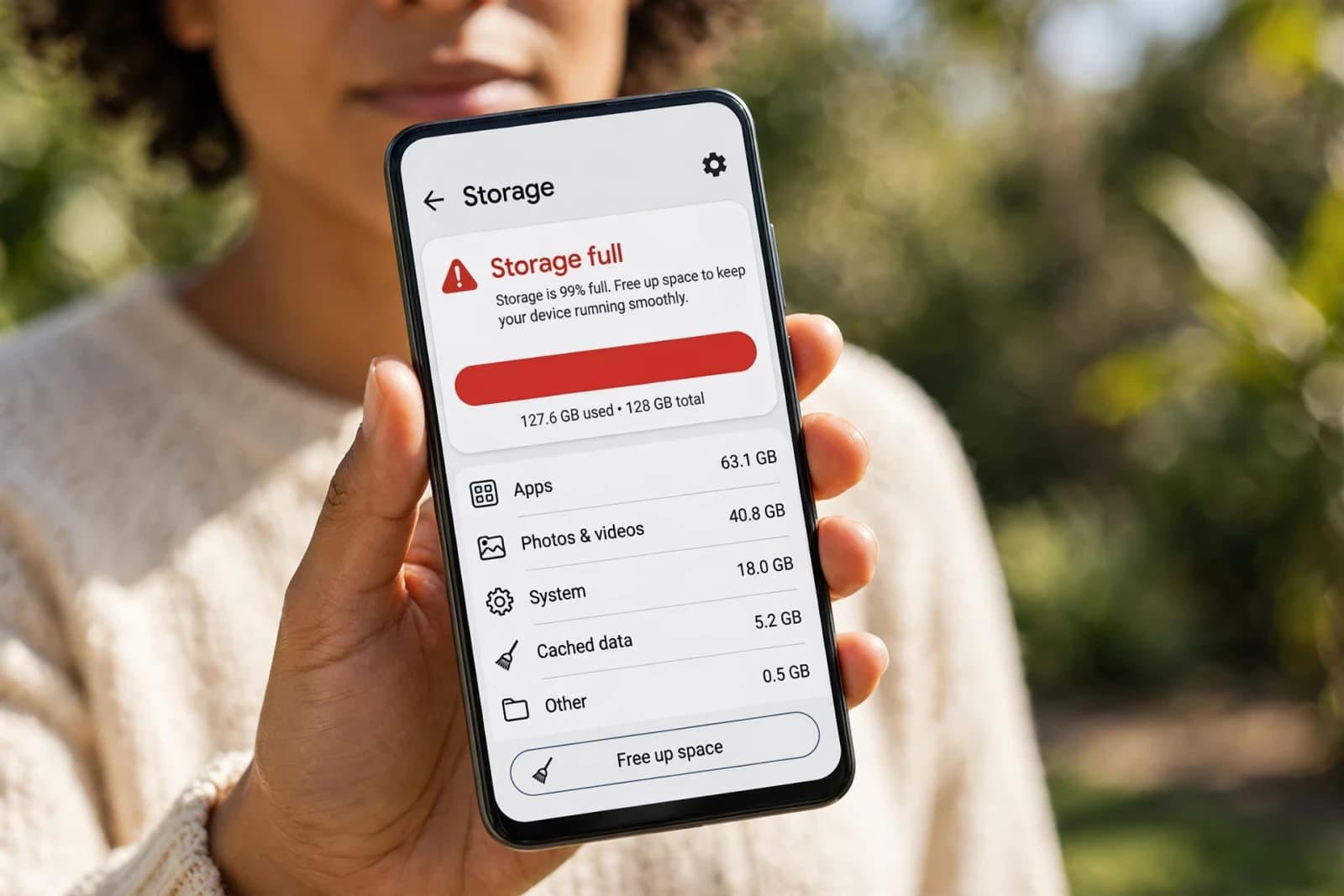
Open Settings, then Battery, then Battery usage, and then Settings, Storage. Write down:
- Free storage. Under 10 percent means storage is the main problem.
- Top battery app in the last 24 hours. Over 20 percent with little use means background drain.
- Last restart. Not restarted in 2 weeks means temporary processes piled up.
Step 1: Free storage the right way
Start with Downloads (often 2 to 5 GB of old PDFs, videos, and APK installers), WhatsApp media in Settings, Storage and data, Manage storage (forwarded videos are often 500 MB to 1 GB), and app cache for Chrome, Instagram, Facebook, and YouTube (often 500 MB to 1 GB each). Clearing cache does not delete your account, photos, or chats.
A phone with 128 GB storage and only 4 GB free will lag on every update, because updates need temporary space. Freeing 10 to 15 GB usually makes the same phone feel like a different phone the same day.
Step 2: Find the background app
Go to Settings, Apps, sort by size or last used, and check Battery usage. For a shopping, food delivery, social, or finished game app that runs in the background, set Battery use to Restricted, turn off background data if instant notifications are not needed, and change location to While using the app only. Do not do this for banking, messaging, or maps if you rely on them in real time.
Step 3: Clean-up checklist in order
1. Delete Downloads and large WhatsApp videos.
2. Clear cache for your top 3 heavy apps.
3. Uninstall apps not opened in a month.
4. Turn off auto-start for apps not needed at boot.
5. Restart the phone.
6. Use it normally for 10 minutes.
What NOT to do
- Do not install a random phone booster app. Most run ads and background work and make it worse.
- Do not tap Clear data just to free space. That signs you out and can delete local chats and settings. Clear cache is safe. Clear data is not the same thing.
- Do not factory reset first. Try the checklist first and back up photos before any reset.
When a new phone actually makes sense
If the battery is swollen, the phone shuts off at 20 percent, or the screen and charging port are damaged, repair or replacement makes sense. If it is just slow, keep your money.
Quick recap
- Storage under 10 percent free: check Settings, Storage. Delete Downloads and WhatsApp videos and clear cache.
- One app drains battery: check Battery usage for the last 24 hours. Restrict background use and limit location.
- Phone not restarted in weeks: restart once a week.
- Keyboard and camera lag: after the steps above, update the lagging app or reinstall it.
FAQ
Will clearing cache delete my photos?
No. Cache is temporary. Photos stay unless you tap Clear data or delete them yourself.
How often should I restart?
Once a week is enough.
Is a 4-year-old phone too old?
Not always. If the hardware is fine, the steps above usually help. If the battery is failing, get it checked first.
Do I need a booster app?
No. Android manages memory itself. Closing all apps constantly uses more battery.